Setup Email Templates
This step only needs to occur once or when you decide to change what attendee domains are permitted into the system.
If you are going to enable the Secured Second Level Email Authorization, then you must setup the email template at this time.
Menu Location
From the left side menu, click on Templates, then click Email.
If this menu option is unavailable, visit the customization attendee to enable the Email service.
Procedure
Click on the Secured Second Level Email Authorization radio button.
If this menu option is unavailable, visit the customization settings to set the domain mode.
Add
Then click the Add button to create a new email template.
Enter a Template Name (ie: Project 4) in the text box and then click the Create button.
Edit
Select the template from the Select Template drop down and then click on the Edit button.
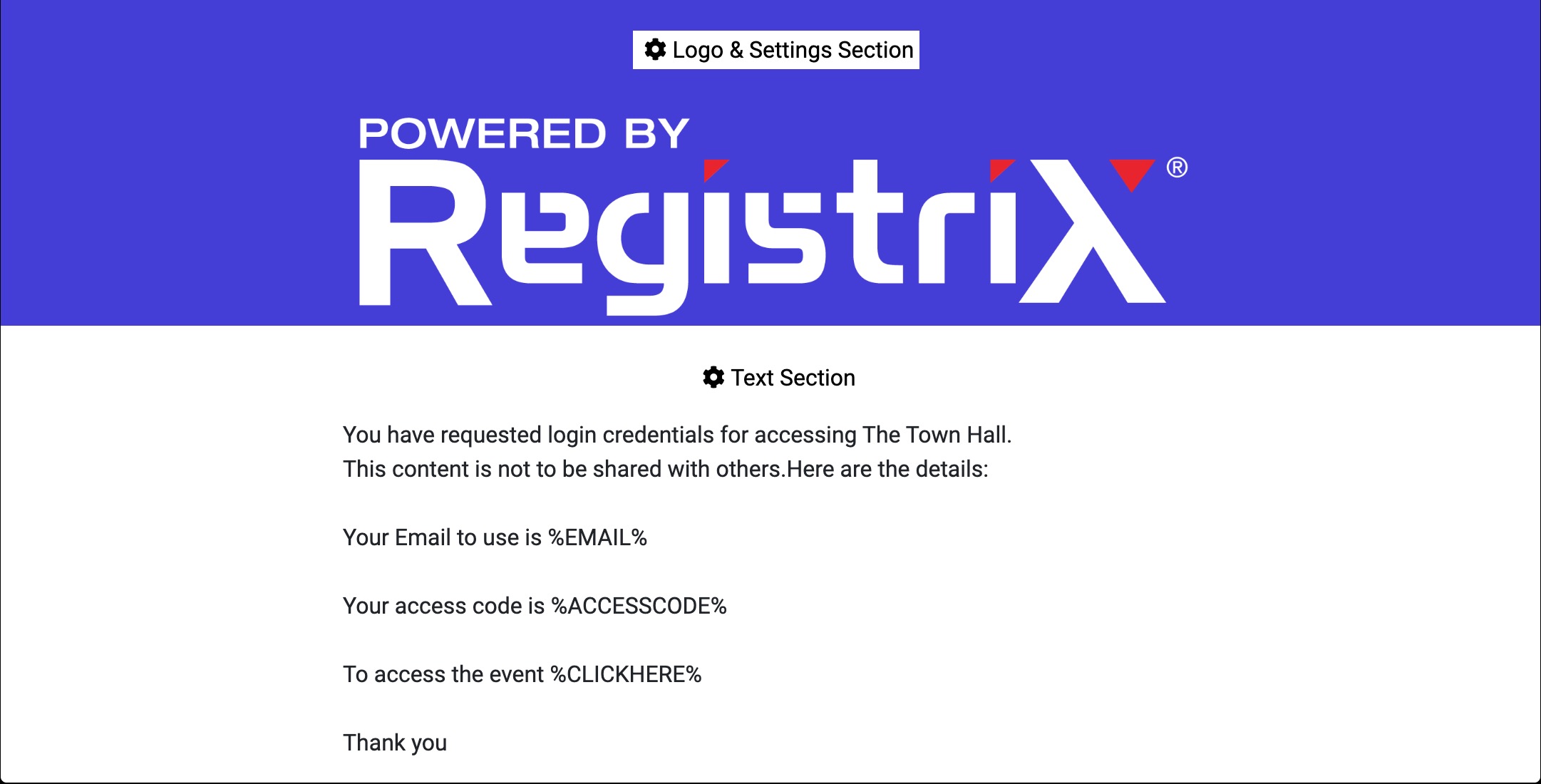
Click on the Gear of the Logo & Settings Section.
Enter a Sender Name (ie: "Production Manager") This is the name that will be visible to the attendee's email system as the "from" name.
Enter a Subject Line in the text box, which will be in the attendees subject line of the email message.
Using the slider tool you can specify the width of the email message from 300px to 600px. You can leave this at 600px.
You can select a background color to use based on your companies requirements for the logo branding.
If your logo isn't in the list box, click on the New button and in the popup window, drag and drop a logo image file and then click on the Upload button. The logo will now appear in the template box. Click the Close button to the lower right side of the slider window.
Now click on the Gear of the Text section. A new slider window will appear that will allow you to start entering text that you want to have written up to the attendee.
In your message you will need to add in shortcodes for the attendee to gain information about their account. To do this click on the Copy icon in the shortcodes area and then in the Text editor, paste this shortcode into the box.
Sample Message
You have requested login credentials for accessing the {Meeting Name}.
This content is not to be shared with others.

Here are the details:
Your Email to use is %EMAIL%
Your access code is %ACCESSCODE%
To access the event %CLICKHERE%

Thank you
Once completed, Click the Close button to the lower right side of the slider window.
Now click on the Save button.